First thing we have to understand is how the time actually work. If you do, you can skip ahead to the next section. I was not completely sure how the time work. I confirmed from the search on google and here is what it said.
1 min = 60 seconds 1 seconds = 100 centiseconds
We use the similar code as the Clock, there is a Lable (a textbox) called timeText, and we will update it every 1 centisecond, and increment our time sturcture by 1 as well. Take a look at the way it is designed.
# timer is a list of integer, in the following order
timer = [minutes, seconds, centiseconds]
Notice in the actual code it is initialized to 0,0,0. But it then created a problem of not being show as 00:00:00 as a normal stop watch would. One way to get around this is to use the string's format.() function.
pattern = '{0:02d}:{1:02d}:{2:02d}'
timeString = pattern.format(timer[0], timer[1], timer[2])
{0:02d}, the first 0 means which parameter in the format() function call, 02d means, it is expecting an integer of length 2, the 02 means it is padding with leading zeros infront of it. Take note of this feature, as it is really powerful, you can mix and match different parameters, instead of {0} {1} {2}, you can do creative things like {2} {1} {1} {2} {0}, (such as different order, multiple use of the same varaible, etc).
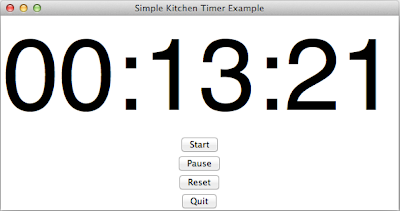
The following program contains 4 buttons (start, pause, reset, quit). Which they do what they are named after respectly. The reset function work both running and paused clock. Maybe it is a good idea to add a time lap feature?
import Tkinter as tk

# Note: Python 2.6 or higher is required for .format() to work
def update_timeText():
    if (state):
        global timer
        # Every time this function is called,
        # we will increment 1 centisecond (1/100 of a second)
        timer[2] += 1

        # Every 100 centisecond is equal to 1 second
        if (timer[2] >= 100):
            timer[2] = 0
            timer[1] += 1
        # Every 60 seconds is equal to 1 min
        if (timer[1] >= 60):
            timer[0] += 1
            timer[1] = 0
        # We create our time string here
        timeString = pattern.format(timer[0], timer[1], timer[2])
        # Update the timeText Label box with the current time
        timeText.configure(text=timeString)
        # Call the update_timeText() function after 1 centisecond
    root.after(10, update_timeText)

# To start the kitchen timer
def start():
    global state
    state = True

# To pause the kitchen timer
def pause():
    global state
    state = False

# To reset the timer to 00:00:00
def reset():
    global timer
    timer = [0, 0, 0]
    timeText.configure(text='00:00:00')

# To exist our program
def exist():
    root.destroy()

# Simple status flag
# False mean the timer is not running
# True means the timer is running (counting)
state = False

root = tk.Tk()
root.wm_title('Simple Kitchen Timer Example')

# Our time structure [min, sec, centsec]
timer = [0, 0, 0]
# The format is padding all the
pattern = '{0:02d}:{1:02d}:{2:02d}'

# Create a timeText Label (a text box)
timeText = tk.Label(root, text="00:00:00", font=("Helvetica", 150))
timeText.pack()

startButton = tk.Button(root, text='Start', command=start)
startButton.pack()

pauseButton = tk.Button(root, text='Pause', command=pause)
pauseButton.pack()

resetButton = tk.Button(root, text='Reset', command=reset)
resetButton.pack()

quitButton = tk.Button(root, text='Quit', command=exist)
quitButton.pack()

update_timeText()
root.mainloop()

